| 27th Dec 1998
|
Introduction to Database Development: Part 3
|
|
|
Other Sections: Forms Queries (1) Queries (2) |
Forms provide a easy means of viewing and updating data. Forms can be bound to data, thus reflecting changes in the underlying data, or can be unbound such as an 'About box' or a simple message box. Unbound forms can also display and update data through programme code. However, I shall be discussing the bound form here. A simple way of creating a bound form in Access is to use the Access Table Wizard. If the database window is obscured, minimised other windows or select it from the Window menu option, e.g. Window -> db1:database (where db1 is the name of your database). Click on the Forms tab,
Note that Forms can be based on queries as well as tables. We shall come to queries latter. Click 'OK' and the Wizard will build the Form.
If you don't like the form as it stands you can customise it quite easily. we shall look at altering the form later. The form is showing data from the first record in the table.
There are a number of points to note:
|
Developer Links
|
 then click on the New button
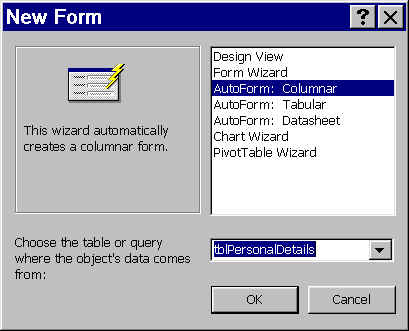 The
Wizard automates the process of creating Forms. Here we can see that the Wizard window has
an information pane on the left, and a list box on the right; the 'AutoForm: Columnar'
option is highlighted, and at the bottom of the window the 'tblPersonalDetails' has been
chosen to provide the data for the Form.
The
Wizard automates the process of creating Forms. Here we can see that the Wizard window has
an information pane on the left, and a list box on the right; the 'AutoForm: Columnar'
option is highlighted, and at the bottom of the window the 'tblPersonalDetails' has been
chosen to provide the data for the Form. 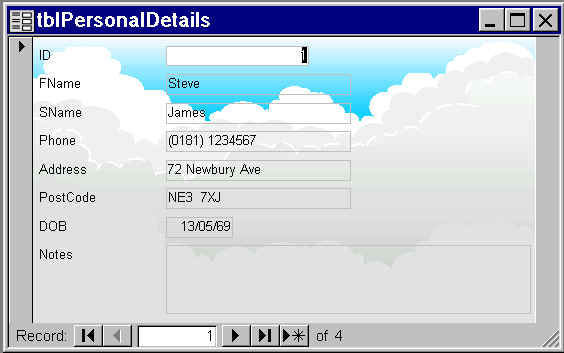 The form
that the Wizard built.
The form
that the Wizard built.